Netflix on a Projector: Common Playback Problems, Fixed
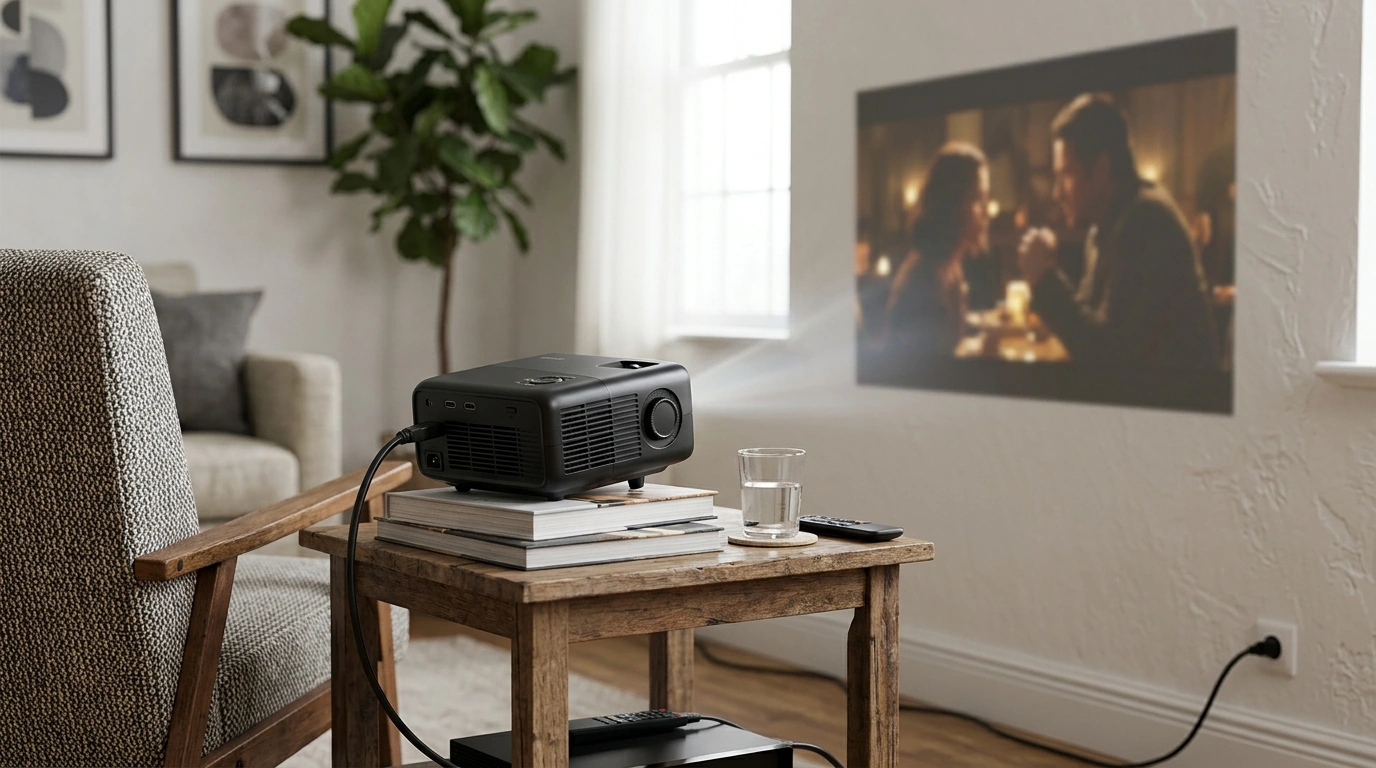
Netflix can work with a projector, but the projector needs a compatible Netflix app or a supported streaming device. When playback fails, the cause is often app certification or copy-protection compatibility—not the projector’s ability to display a picture.
Why might Netflix not play on a projector?
Is the projector’s Netflix app supported?
Some smart projectors run Android or another app-based system, but that does not guarantee that every version of Netflix is supported. Netflix may refuse to open, show an error, or offer limited playback if the projector’s system is not certified for the service. An app installed from an unofficial source may also fail to play protected video.
Could copy protection be blocking playback?
Netflix protects video with digital rights management (DRM). If you connect a computer, streaming stick, or other device through HDMI, the projector and any adapter or receiver in the signal path must support the required HDCP copy protection. An incompatible adapter, cable, or AV receiver can lead to a black screen or an error even when menus appear normally.
Why does screen mirroring show a black picture?
Phone mirroring can display menus and other apps while blocking Netflix video. That is a common result of content-protection rules, not necessarily a projector fault. Use a Netflix-compatible streaming device connected directly to the projector’s HDMI input instead of relying on wireless mirroring.
How can you get Netflix working?
Start by updating the projector’s system software and Netflix app, then restart the projector and router. Confirm that the projector is connected to a stable internet connection and that Netflix plays on another device on the same network.
If the built-in app still will not play, connect a supported streaming stick or box to HDMI and open Netflix on that device. Make sure the projector’s input is set to the correct HDMI port. If you use an adapter or receiver, temporarily connect the streaming device directly to the projector to rule out an HDCP issue. Also connect the streaming device to suitable power; some projector USB ports may not provide enough.
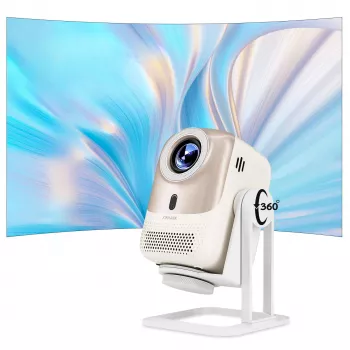
For a smart projector option, see our 4K smart portable projector guide. Before choosing a setup, consider which apps you need and whether you prefer built-in streaming or an external device. A 4K label describes image resolution; it does not, by itself, confirm Netflix app support.
FAQ
Can a streaming stick make an older projector work with Netflix?
Often, yes, if the projector has a compatible HDMI input and supports the streaming device’s HDCP requirements. Connect the stick directly to HDMI, provide adequate power, and select that input on the projector.













Leave a comment