How to Connect a Phone to a Smart Projector (Easy Ways)
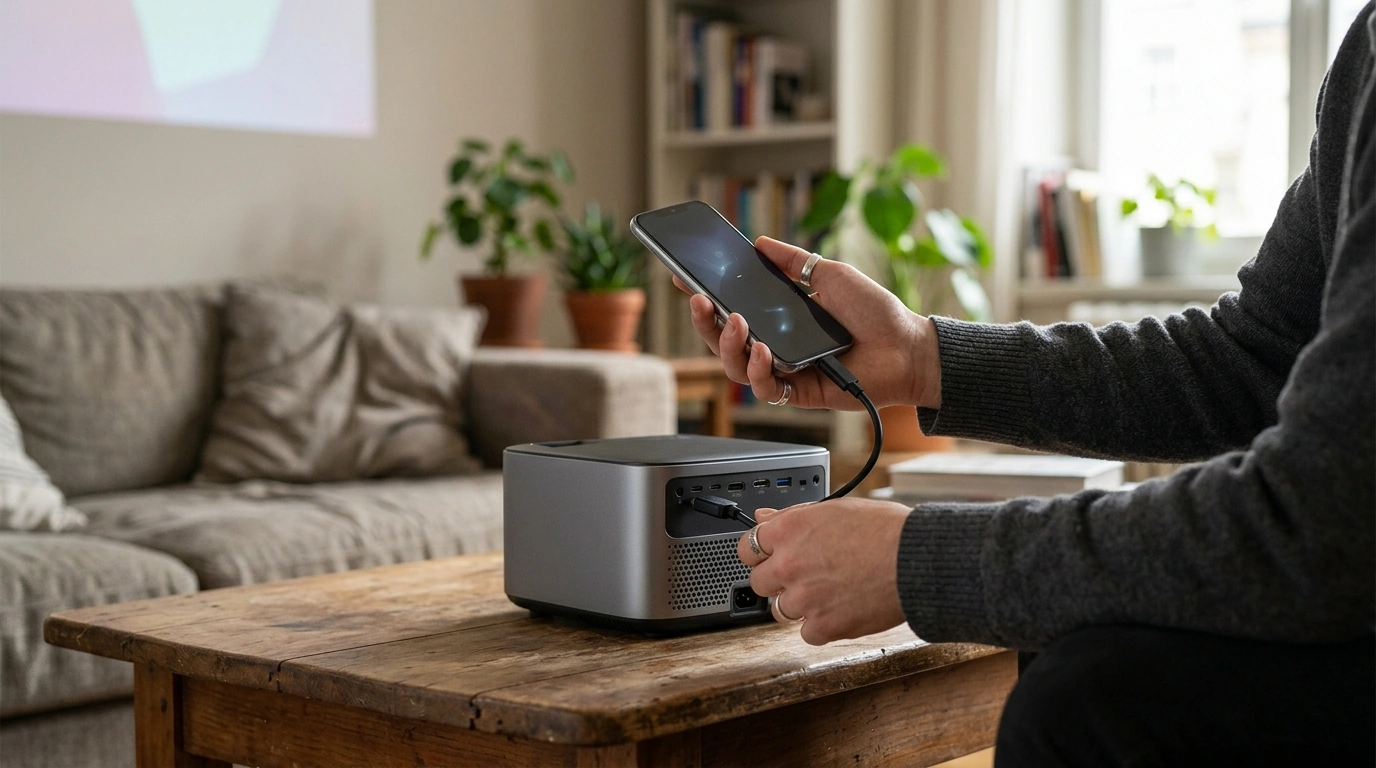
Can I connect my phone to a smart projector?
Yes—most smart projectors can connect to a phone, either wirelessly (Wi‑Fi, screen mirroring, or casting) or with a cable (USB‑C/Lightning to HDMI). The best method depends on your phone model, the projector’s operating system, and whether the projector supports built-in casting standards like AirPlay, Chromecast, or Miracast.
Wireless options: easiest for everyday use
If your smart projector and phone are on the same Wi‑Fi network, you can usually mirror your screen or cast video directly from supported apps. iPhone users often connect via AirPlay, while many Android phones use Chromecast (Google Cast) or Miracast. Some projectors also offer a companion app that helps pair devices, manage streaming, and adjust settings from your phone.
For smoother playback, place the projector within good Wi‑Fi range and consider using the 5GHz band if both devices support it. When streaming from apps, casting (sending the video stream to the projector) typically looks better than full-screen mirroring and may reduce lag.
Wired options: best when you want stability
For gaming, presentations, or spots with weak Wi‑Fi, a cable connection is often the most reliable. Many phones can output video using a USB‑C to HDMI adapter (common on Android) or a Lightning to HDMI adapter (iPhone). Once connected, switch the projector’s input to HDMI and your phone screen should appear automatically.
What if the projector won’t connect?
Start by confirming compatibility: not every projector supports every casting standard. Update the projector’s firmware and your phone’s OS, reboot both devices, and verify they’re on the same network. If a streaming app blocks mirroring due to DRM, try casting from within the app instead of mirroring the whole screen.
For a deeper look at smart projector features like Wi‑Fi setup, autofocus, and home-theater use, visit this guide: https://fascinira.com/guide-4k-smart-mini-projector-auto-focus-wifi-home-theater/.
FAQ
Do smart projectors need Wi-Fi to work?
No. Wi‑Fi is helpful for streaming and wireless casting, but you can still use a smart projector with HDMI devices (like a laptop or streaming stick) without connecting it to the internet.














Leave a comment