4K Smart Mini Projector: Auto Focus, WiFi & Home Theater
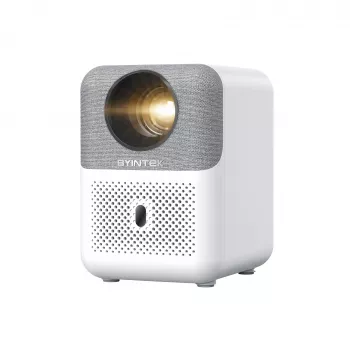
Big-Screen Entertainment Without the Big TV Footprint
A compact projector can turn a bedroom wall, living-room screen, or backyard sheet into a big-screen setup without the bulk of a traditional TV. The 4K Smart Mini Projector with Auto Focus, WiFi & Home Theater Display is designed for quick placement, easier focusing, and everyday streaming workflows—so you can spend more time watching and less time dialing in settings.
What This Projector Is Built For
- Quick, low-fuss setup for movie nights, casual gaming, and streaming in small-to-medium rooms
- Portable placement on shelves, coffee tables, bedside stands, or temporary outdoor setups
- Hands-off clarity with auto focus to reduce manual tweaking after moving the unit
- Wireless convenience for phones and laptops where cable runs are inconvenient
If the goal is flexible viewing—shifting from living room to bedroom, or setting up a weekend “cinema night” outside—mini projectors fit the rhythm of daily life better than a permanent, wall-mounted display.
Key Features That Matter Day to Day
- Auto focus: Aims to keep the image crisp after repositioning or minor bumps, which is especially helpful if the projector lives on a nightstand or gets moved between rooms.
- WiFi-enabled streaming and casting: Convenient for quick playback from mobile devices (platform support and app behaviors can vary).
- 4K-focused viewing: Many compact projectors accept 4K input and then render within their native resolution; the practical benefit is a sharp, detailed picture when fed quality sources.
- Mini form factor: Easier to store, pack, and travel with than full-size home theater units.
- Home-theater display tuning: Designed for more cinematic color and contrast handling on larger projections.
For planning image size and placement, tools like ProjectorCentral’s screen size calculator can help you estimate what screen size you’ll get at different distances.
Setup Walkthrough (From Box to First Movie)
- Choose placement: Start as centered as possible to the screen/wall, then adjust distance until the image fills your space comfortably.
- Power on and pause: Give auto focus a moment to settle before making fine placement changes.
- Connect WiFi (if streaming/casting): Confirm your network is stable where the projector sits; if the signal is weak, moving closer to the router often helps more than tweaking settings.
- Select audio: Use the built-in speaker for casual viewing, or connect a soundbar/receiver when you want bigger, clearer sound.
- Dim the room: Reducing ambient light improves perceived contrast and makes details pop.
A small tip that saves time: once you find a “sweet spot” on a shelf or table, mark the spot with a discreet piece of tape. Returning to the same position usually means faster focusing and fewer corrections.
Connectivity and Compatible Sources
Projectors are at their best when the source and connection match the job. Streaming can be as simple as casting from a phone, but for consistent app access and fewer playback surprises, a dedicated streaming stick/box connected via HDMI is often the smoothest path.
HDMI standards also matter for compatibility across consoles and media devices; a quick overview is available from the HDMI Licensing Administrator. For wireless performance, the Wi‑Fi Alliance is a helpful reference point for Wi‑Fi generations and certified devices.
Common Ways to Use It
| Use case | Best connection | Why it helps | Tip |
|---|---|---|---|
| Movies & series | Streaming stick/box (wired power + HDMI to device) | Reliable playback and app support | Pair with a soundbar for clearer dialogue |
| Phone casting | WiFi casting | Fast setup without cables | Keep the router close for stability |
| Gaming | Console via HDMI | Lower latency than many wireless paths | Use Game Mode if available and disable extra processing |
| Presentations | Laptop via HDMI or wireless | Flexible room placement | Test resolution and scaling before a meeting |
Picture Quality Expectations in Real Rooms
- Ambient light control is the biggest factor: A darker room delivers deeper blacks and more punchy color.
- Projection surface matters: A dedicated screen improves uniformity and perceived contrast versus textured paint or uneven walls.
- Auto focus boosts convenience: It helps maintain sharpness, but extreme off-axis placement can still soften edges.
- Stability helps clarity: Keep the projector steady and allow it to refocus after any movement.
When the room is moderately controlled—curtains drawn, lights dimmed—even a small projector can feel surprisingly immersive, especially at sizes that make TVs look modest by comparison.
Sound: Built-In vs. External Audio
If you stream, record, or game with voice chat, pairing your setup with a dedicated mic like the RGB USB Gaming Microphone with Noise Canceling & One-Touch Mute can improve clarity for teammates and viewers compared with typical laptop mics.
Where a Mini Projector Fits Best (And When It Doesn’t)
Care, Placement, and Long-Term Reliability
Pricing, Stock, and What’s Included
- Current price and availability can fluctuate; confirm the latest status on the product page for the 4K Smart Mini Projector with Auto Focus, WiFi & Home Theater Display.
- Check what comes in the box (remote, power adapter, cables) and plan any extras (screen, longer HDMI cable, external speaker).
- Budget for the surface: a quality screen upgrade can be as impactful as stepping up to a higher-tier projector.
FAQ
Does auto focus remove the need to manually adjust the picture?
Auto focus helps keep the image sharp, especially after you move the projector, but it doesn’t guarantee perfect geometry. You may still need to adjust placement, angle, and any keystone/fit settings to get a clean, rectangular frame.
Can streaming apps run directly on the projector over WiFi?
Some projectors include built-in streaming features, while others work best with a streaming stick/box for the broadest app support. WiFi stability affects playback, and some apps may limit casting or playback due to DRM rules.
Is it good for gaming?
It can be a fun gaming display, especially when a console is connected via HDMI for lower latency. If a Game Mode is available, enabling it can reduce extra processing, and external audio can make gameplay more immersive.













Leave a comment